

Status, November 10, 2026: claim submitted, under review. I’ll update this post as it moves, with dates.
On November 10, OpenAI launched Businesses in ChatGPT. Businesses can now claim their profile in ChatGPT, update their details, add product feeds, and see how often ChatGPT mentions them. In the US, eligible ecommerce and online service businesses can also build a Business Agent that customers can chat with.
I claimed my company, terspective, the same evening and took a screenshot of every step. Here’s what the process looks like, what you can and can’t do right after claiming, and the one thing I’d check before you start.
Short answer
Go to Business Hub (chatgpt.com/business-hub), search for your business, and verify that you control it, either with a code to your business phone or with a DNS TXT record on your domain. With DNS it took me about fifteen minutes, and most of that was writing this down. The claim then goes into review. Editing your profile, adding your website and uploading products all need an extra identity check with a government-issued ID. And the insights start empty.
Before you claim, make sure ChatGPT can actually read your website. Business Hub crawls the site you save to your profile, and if your server blocks OpenAI’s crawlers, that part won’t work. I found exactly that problem on this blog two days earlier: Can ChatGPT Read Your Website?
What Businesses in ChatGPT is
From OpenAI’s announcement and FAQ:
- Claim and update. Once verified, you can update key details and add product feeds with pricing and availability. ChatGPT may use this information when answering questions.
- Insights. Mentions, profile views and website clicks, plus “discovery topics”, the common themes in conversations where your business comes up. Everything is aggregated and only shows up after a minimum amount of activity.
- Blue check. A claimed profile gets a blue check in ChatGPT.
- Business Agents. A labeled chat with your business, separate from ChatGPT’s own answer. For now, US ecommerce and online service businesses only. Agents can also be promoted as a ChatGPT Ads destination.
- No ranking boost. OpenAI’s FAQ says claiming does not guarantee higher placement or sales.
- Who can claim. Businesses with a website, in countries where ChatGPT is available, subject to industry, location and verification checks. You need to own the business or be authorized to represent it.
How I claimed my business, step by step
1. Search for your business
I searched for “terspective” in Business Hub. ChatGPT already had a profile for it before I claimed anything: the name, a Directions button, and an address.
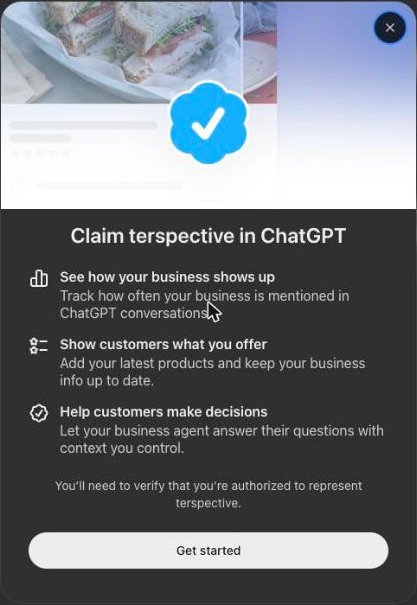
That address is the one from my company’s registration, not where I work. Nobody at OpenAI asked me for it. ChatGPT had pulled it from somewhere public. This alone is a good reason to claim: your business may already have a profile in ChatGPT with details you never chose.
2. Confirm the account
The next screen links the business to the ChatGPT account you’re logged in with. Pick the account you want to manage the profile with before you continue. Moving it later may not be simple. Continuing also accepts the Businesses in ChatGPT terms.
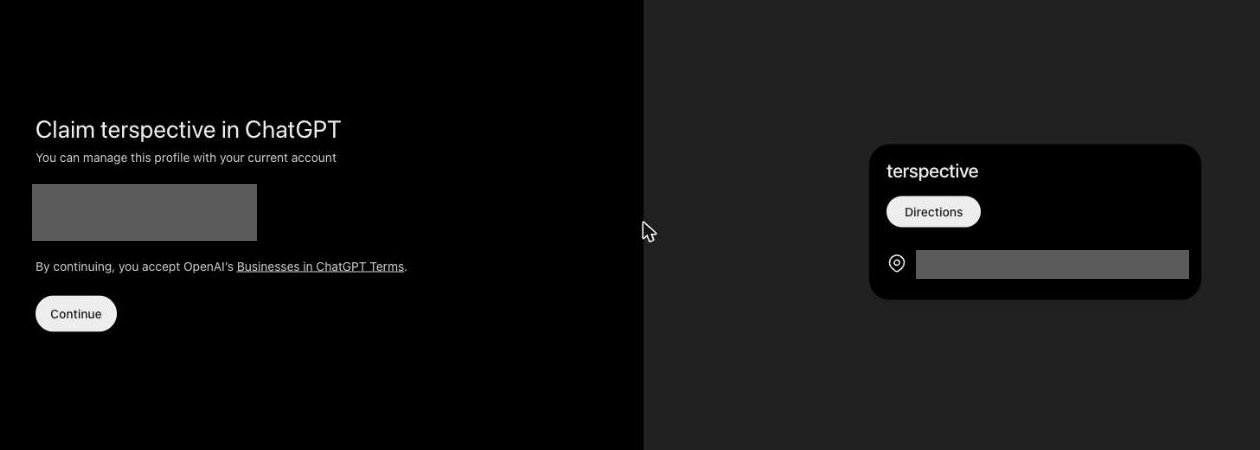
My account is on the free plan. Claiming didn’t need a paid plan.
3. Choose how to verify
Two options:
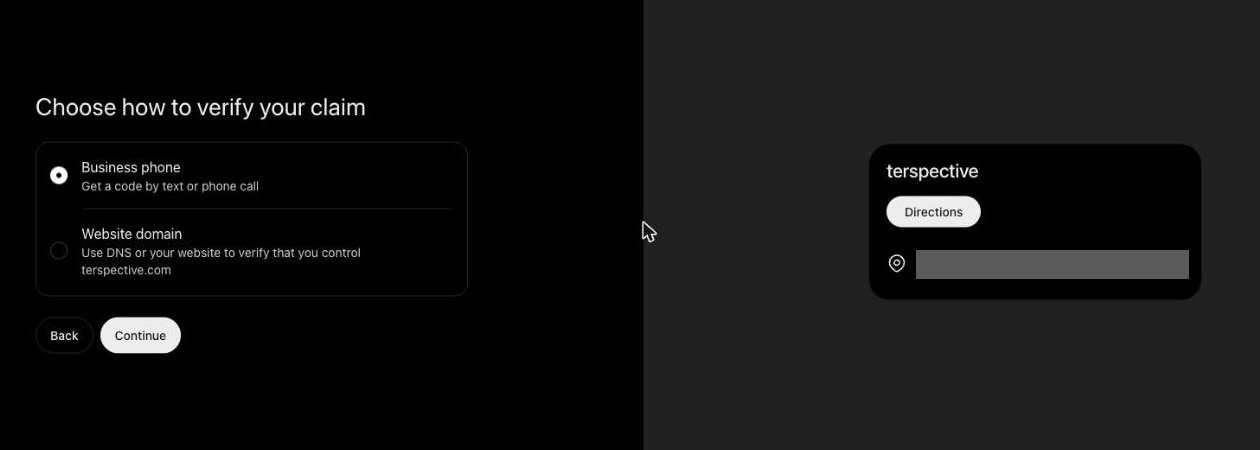
- Business phone: a code by text or phone call.
- Website domain: prove you control your domain.
I chose the domain. The option mentions “DNS or your website”, but the next screen only gave me a DNS TXT record.
4. Add the DNS TXT record
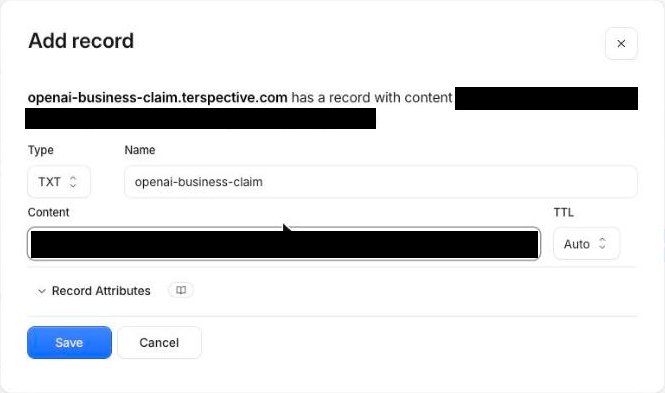
Business Hub shows a TXT record:
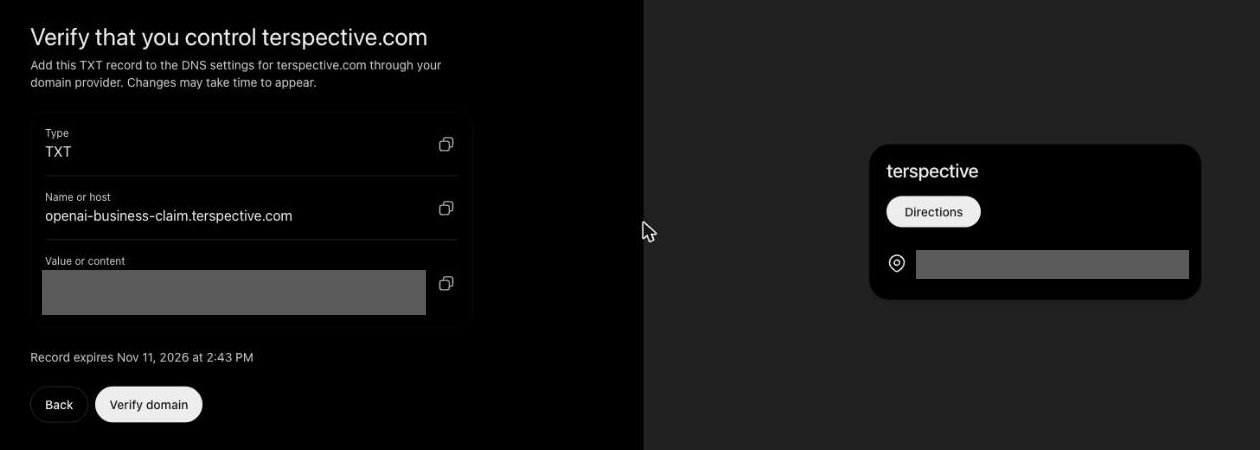
| Field | Value |
|---|---|
| Type | TXT |
| Name | openai-business-claim.yourdomain.com |
| Value | openai-business-claim= followed by a token |
The record expires after about 24 hours, so add it in one go.
My domain’s DNS is on Cloudflare: DNS → Records → Add record, type TXT, name openai-business-claim (Cloudflare adds the domain itself), the value pasted exactly, TTL Auto.
To check that it’s live before you click verify:
dig +short TXT openai-business-claim.yourdomain.comMine showed up within seconds on Cloudflare’s own nameserver, 1.1.1.1 and 8.8.8.8. With other DNS providers it can take longer.
5. Verify, then wait
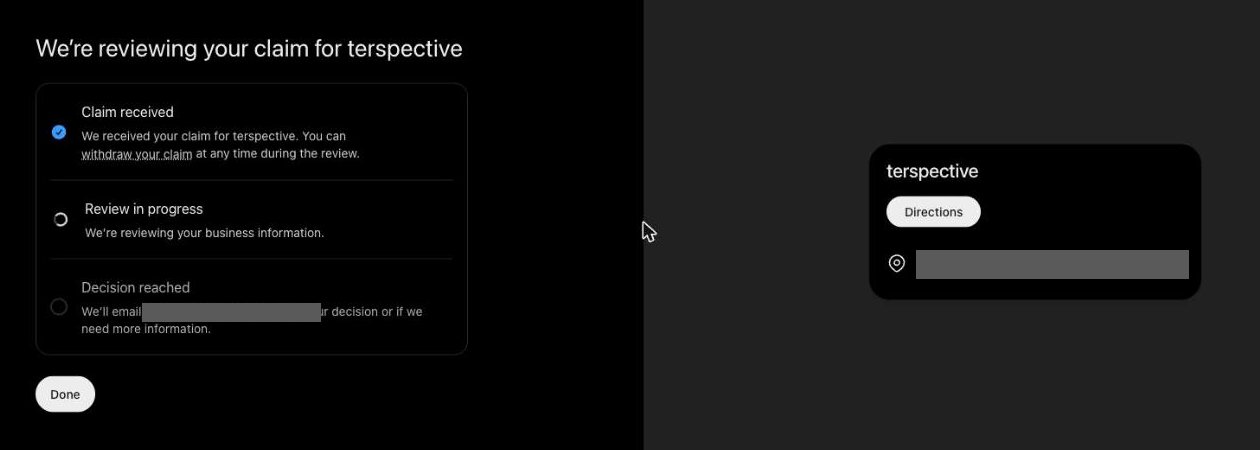
After “Verify domain” there was no instant approval. The screen showed three steps: claim received, review in progress, decision reached, and said the decision would come by email. You can withdraw the claim during the review.
6. What Business Hub looks like during review
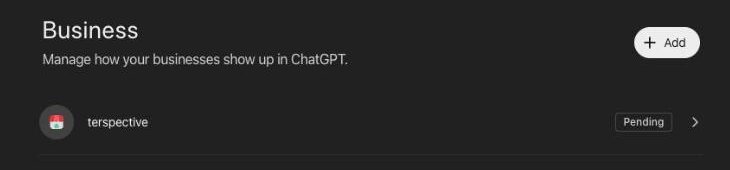
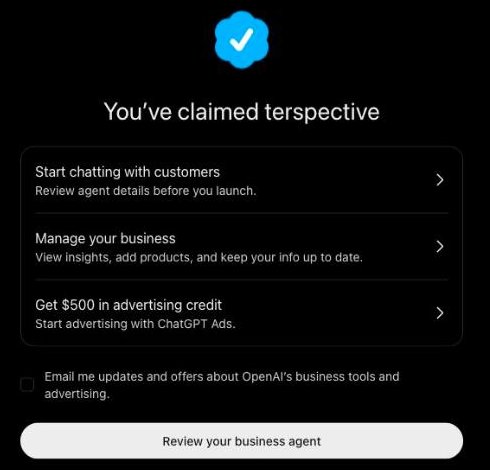
This part was confusing. The business list says “Pending”, but opening the profile shows a blue check and “You’ve claimed terspective”, with three options: start chatting with customers, manage your business, and a $500 credit for ChatGPT Ads.
So “claimed” and “verified” aren’t the same thing yet. Here’s what I could and couldn’t do:
- Edit business info: locked. A banner asks for identity verification with a government-issued ID before editing or publishing an agent.
- Add website: “Website access” shows “No website”, and Add website opens the verification prompt. Trying it during review gives “Your business verification is still being processed.”
- Products: also needs the ID check.
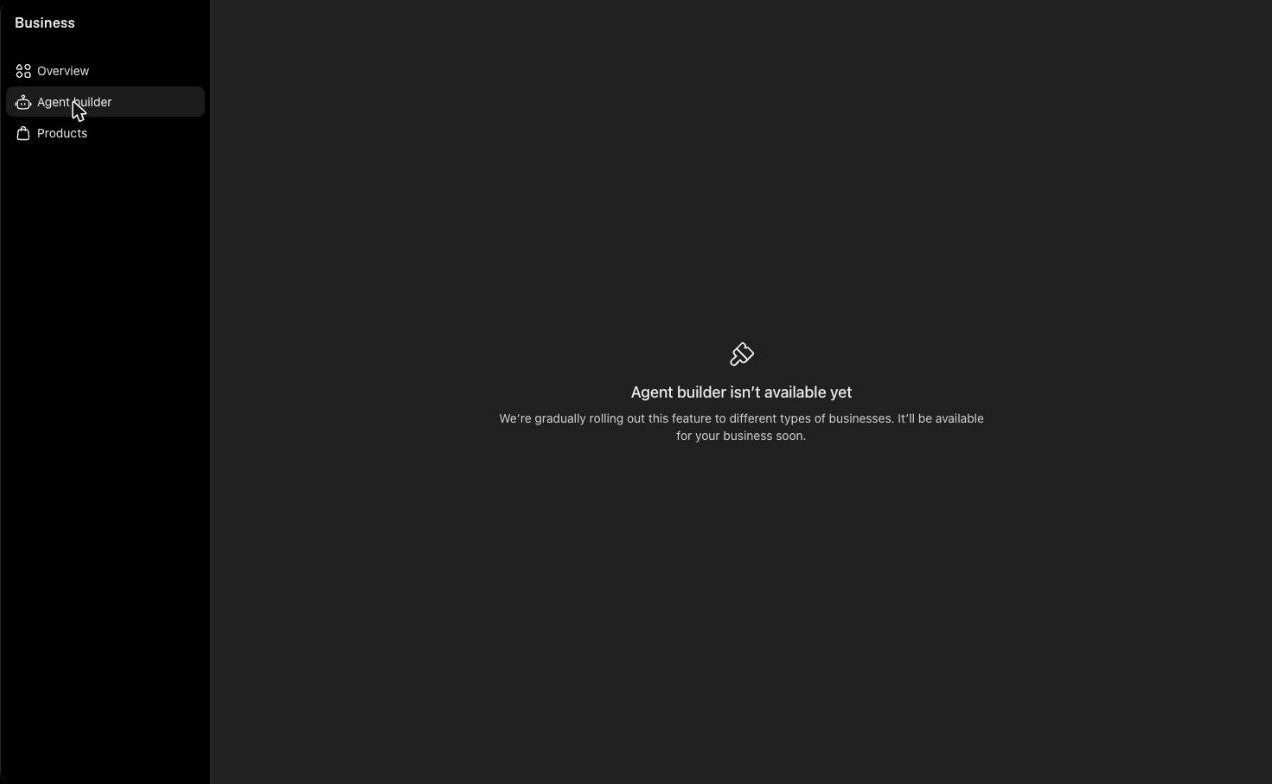
- Agent builder: “isn’t available yet”, rolling out gradually, even though terspective is a US company that sells online services.
- Insights: mentions, profile views and website clicks, 7 or 28 days, all empty. Discovery topics: empty until there are “enough mentions”.
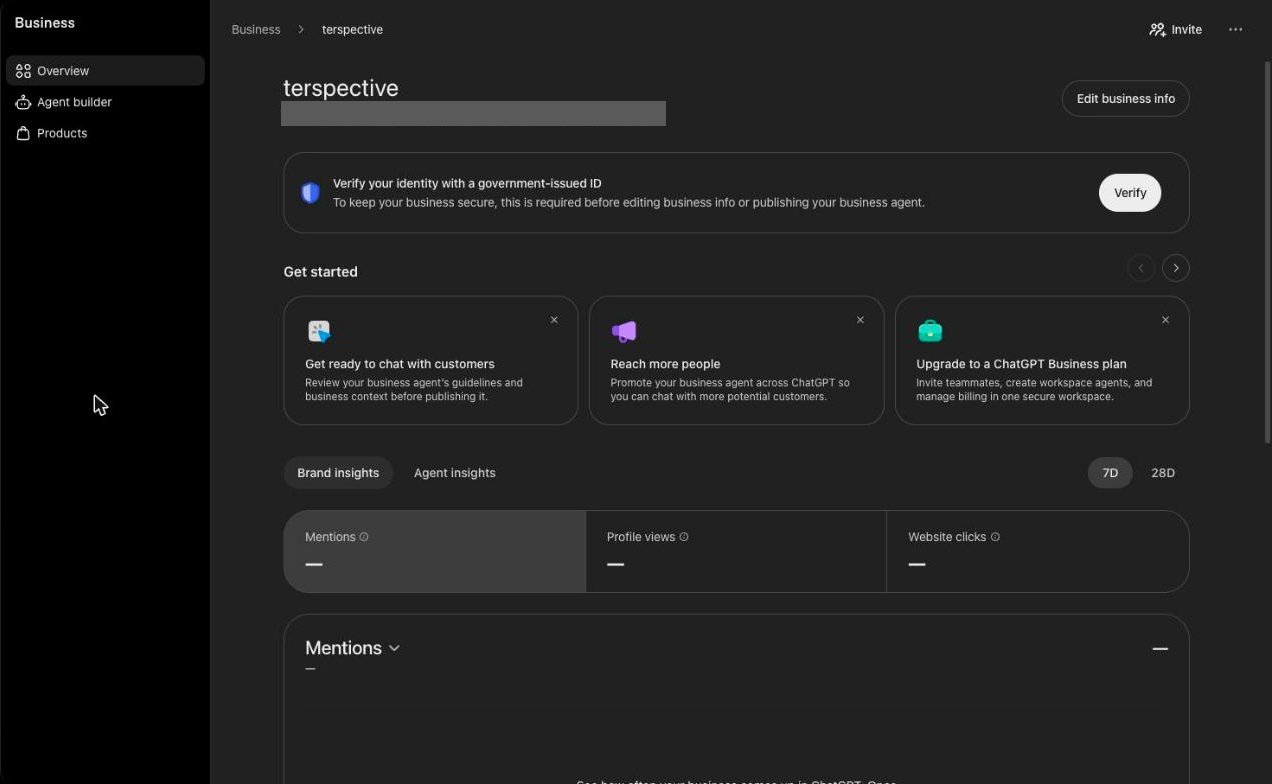
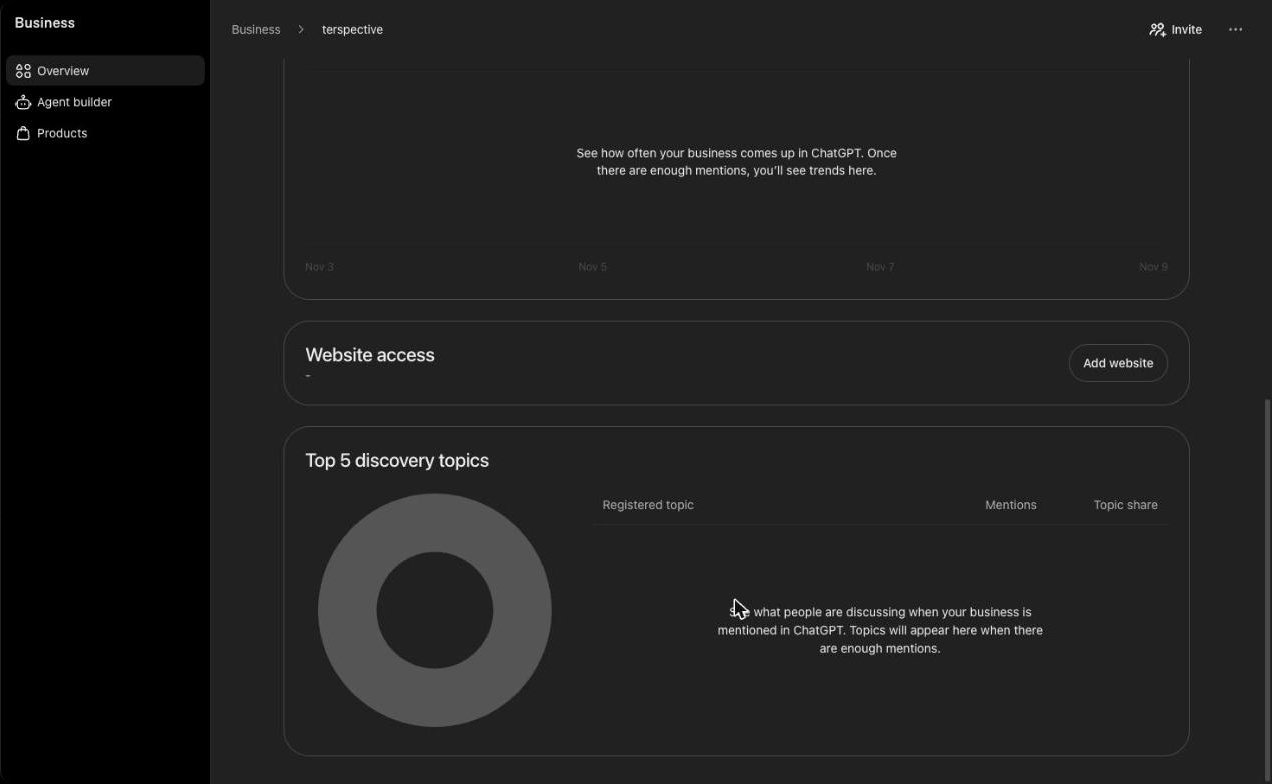
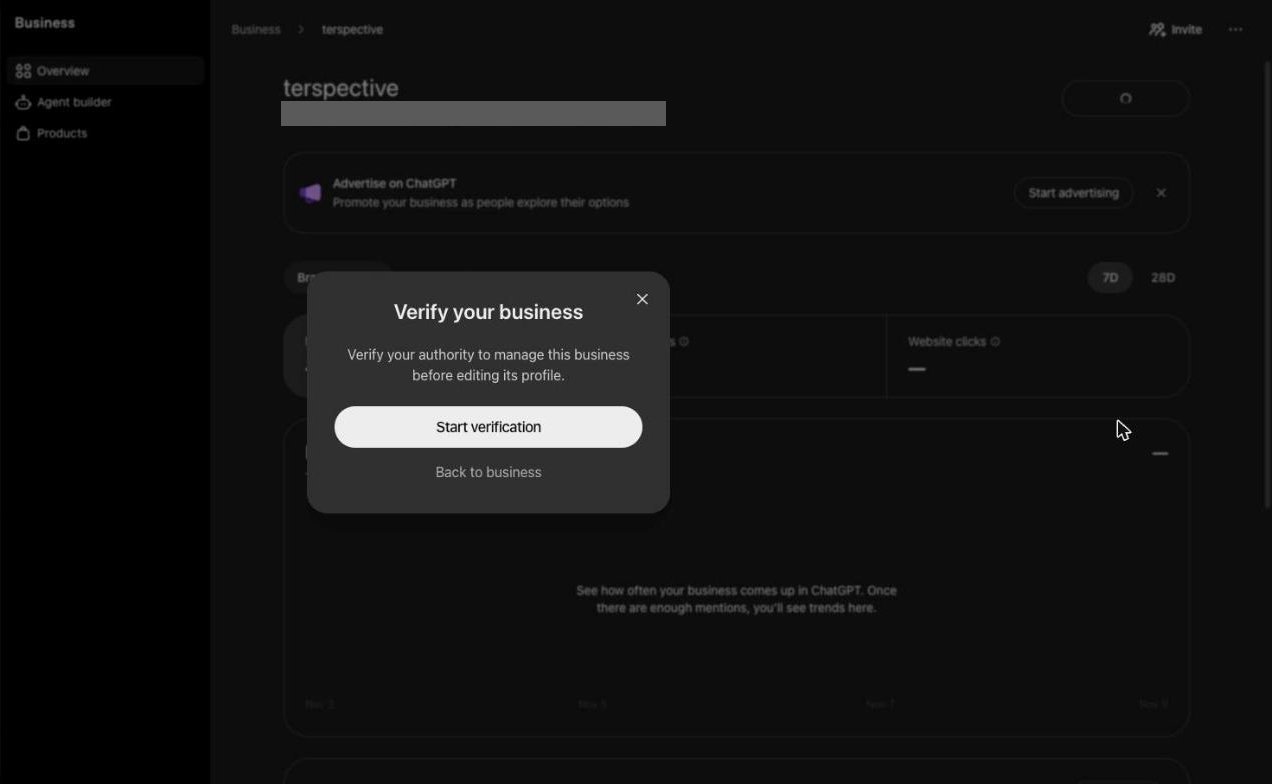
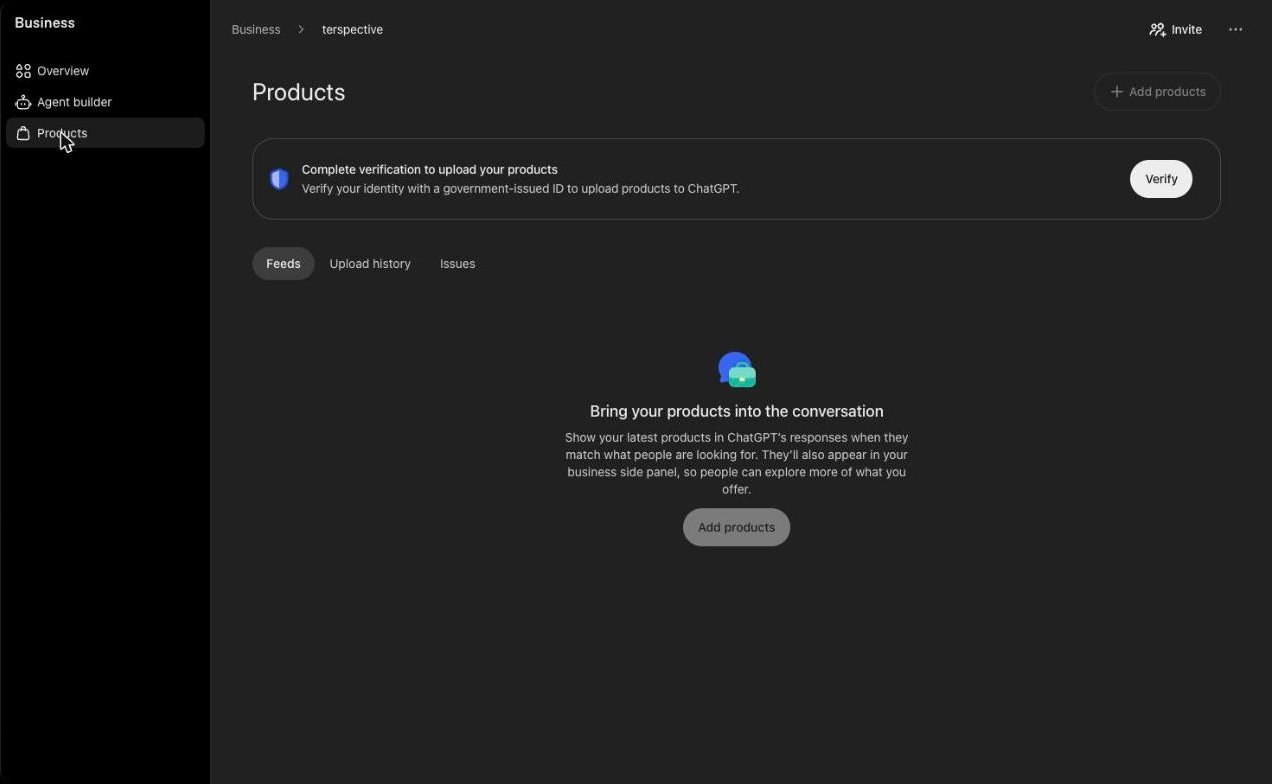
The definitions in the panel are useful: data is daily in UTC, profile views count opens of your profile in ChatGPT, and website clicks count clicks on the website link in that profile.
Before you claim: can ChatGPT read your site?
Under “Website access”, Business Hub says the status reflects the saved website URL, and that “a re-crawl also visits eligible linked pages.” In plain words: OpenAI will crawl the website you add to your profile.
If your server blocks OpenAI’s crawlers, that crawl fails. You won’t see an error on your site, and your robots.txt can look perfectly fine. That’s what happened on this blog. My hosting server answered ChatGPT’s crawlers with 403 Forbidden while Google got in without a problem. I wrote up how I found it and fixed it here: Can ChatGPT Read Your Website?
The quickest check takes a minute. Open ChatGPT logged out and ask:
Open this exact page and summarize it in 3 bullet points. If you cannot open it, tell me exactly what error you got: https://yoursite.com/
If it can’t open your page, fix that first. Claiming your profile won’t change it.
Checklist
- Search for your business in Business Hub and see what ChatGPT already shows about you.
- Log in with the account that should own the profile before you continue.
- Verify by phone or with a DNS TXT record; check the record with
digbefore you click verify. - Expect a review, and an ID check before you can edit anything.
- Make sure ChatGPT can read your site before you add it.
- Correct anything wrong in your profile once editing opens up.
- Check insights after a few weeks, not on day one.
Updates
- November 10, 2026: claim submitted with DNS verification; under review.
If ChatGPT can’t read your site, or it describes your business wrong and you’d rather have someone sort it out, get in touch.
