

Why emails go to spam: You migrated your domain. Everything looks fine. The site loads, DNS propagated, your hosting panel shows green checkmarks.
Three days later, a client messages you on your phone: “I haven’t been receiving your emails.” Emails go to spam?
You check. Spam folder. Every email you sent this week; straight to spam.
This is one of the most common post-migration failures, and it almost always comes down to the same three DNS records: SPF, DKIM, and DMARC. They don’t break your site or don’t throw errors. They just quietly fail, silently eroding your email reputation while you assume everything is fine.
This is a well-known spam mail issue that surfaces 24–72 hours after a migration, not right away. By the time you notice, damage to your sending reputation is already be accumulating.
Here’s exactly what to check and how to fix it.
Why Emails Break After a Domain Migration
When you migrate a domain, you’re typically changing at least one of these: your hosting server, your mail server, or your DNS nameservers. Any single change can invalidate your email authentication records, silently. And emails go to spam.
Your DNS records still point to the old mail server. After migration, your SPF record may still contain the IP range of your previous host. Gmail and Outlook verify the sending IP against your SPF record. If they don’t match, the email fails authentication and gets flagged.
DNS propagation doesn’t wait for your emails. DNS changes can take minutes to 48 hours to spread globally. During that window, some mail servers see your old records while others see the new ones. The result is unpredictable, inconsistent deliverability, not a clean failure you can diagnose.
Inbox providers treat recently migrated domains with extra suspicion. Your domain’s sending reputation was built on the old server. The new server has none of that history. To Gmail or Outlook, this looks like an unverified new sender, even if you’ve been running the same domain for ten years.
The fix touches three records. Master those and you’ve solved 90% of post-migration spam mail issues.
The Migration Deliverability Stack: SPF, DKIM, and DMARC
I call these three records the Migration Deliverability Stack because they work as a unit. Fixing two out of three often isn’t enough, inbox providers use all three together to make a trust decision about your domain. Here’s how each one works and where it breaks.
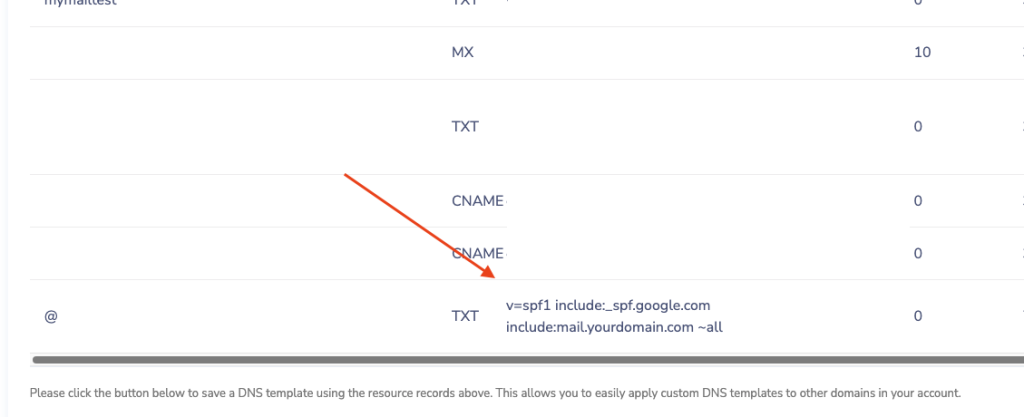
1. SPF Record
What is SPF? An SPF (Sender Policy Framework) record is a DNS TXT record that lists which mail servers are authorized to send email on behalf of your domain. When an email arrives, the receiving server checks if the sending IP is on that list. If it’s not, the email fails SPF authentication. And emails go to spam.
What a correct SPF record looks like:
v=spf1 include:_spf.google.com include:mail.yourdomain.com ~all
v=spf1-> declares this as an SPF recordinclude:-> authorizes a specific mail provider or server IP range~all-> softfail for unlisted IPs (use this during and after migration; switch to-allonly when fully confident)
The post-migration failure mode: Your old host’s IP range is still in the record. You moved from Host A to Host B, but SPF still says include:mail.hosta.com. Every email sent from your new server fails SPF, and most recipients never tell you.
How to check your current SPF record:
dig TXT yourdomain.com
Look for the line starting with v=spf1. Confirm the include: values reflect your current mail provider, not your previous one. MXToolbox SPF Checker gives you a visual breakdown if you prefer that over terminal output.
Critical rule: You can only have one SPF record per domain. If you have two
v=spf1TXT records, many receivers will ignore both. Merge everything into a single record.
2. DKIM Record
What is DKIM? A DKIM (DomainKeys Identified Mail) record is a DNS TXT record containing a public cryptographic key. When your mail server sends an email, it signs it with a matching private key. The receiving server looks up your DKIM record, uses the public key to verify that signature, and confirms the email came from your domain and wasn’t modified in transit. No valid signature? Unverified sender.
How to generate a DKIM key from your new mail provider:
Every provider handles this differently:
- Google Workspace: Admin Console → Apps → Google Workspace → Gmail → Authenticate email
- Microsoft 365: Security → Email & collaboration → Policies → DKIM
- cPanel / Plesk: Mail section → DKIM key generation (often automatic)
Once generated, add a TXT record to your DNS:
Host:  google._domainkey.yourdomain.com
Value: v=DKIM1; k=rsa; p=MIGfMA0GCSqGSIb3DQEBA...
The Host includes a selector (like google, mail, or s1). This is how multiple DKIM keys can coexist, useful if you send through more than one provider.
The two post-migration failure modes:
- Wrong selector: you added a DKIM record but the selector doesn’t match what your new mail server is actually signing with. The signature fails silently.
- Old provider’s key is still in DNS: the private key for that record is gone (it lived on your old server), but the DNS record remains. Delete all DKIM records that belong to your previous provider. Dead DKIM records create authentication noise.
How to check DKIM: Go to MXToolbox DKIM Checker, enter your domain and selector name. If you don’t know your selector, send yourself a test email, view the raw headers, and find the DKIM-Signature: line, look for s=yourselector.
3. DMARC Record
What is DMARC? A DMARC (Domain-based Message Authentication, Reporting & Conformance) record is a DNS TXT record that instructs receiving servers on what to do when an email fails SPF or DKIM checks. Without DMARC, those checks happen but have no enforced outcome. DMARC is what gives them teeth, and what gives you visibility into authentication failures across your domain.
As of 2024, Google and Yahoo require DMARC (at minimum p=none) for bulk senders. Even if you send 20 emails a day, having DMARC in place signals that you’re a legitimate operator running a properly configured domain.
A minimum working DMARC record:
v=DMARC1; p=none; rua=mailto:dmarc-reports@yourdomain.com
Add this as a TXT record with the host set to _dmarc.yourdomain.com.
v=DMARC1: declares this as a DMARC recordp=none: monitoring mode: no action taken on failures (the right starting point)rua=: where to send daily aggregate reports on authentication results
Why start with p=none? If you jump to p=reject before your SPF and DKIM are fully stable, you’ll block your own legitimate emails with no error message to explain why. Start with monitoring, review the rua reports for 1–2 weeks, then move to p=quarantine and eventually p=reject once you’ve confirmed clean results.
Reading DMARC reports: The rua tag triggers daily XML summaries from receiving servers. Tools like DMARC Analyzer or Postmark’s DMARC tool parse these into readable dashboards: you don’t need to read raw XML.
Step-by-Step Emails go to Spam Fix Checklist
Run through this in order after any domain migration:
- Get the SPF string from your new mail provider. Every provider (Google Workspace, Microsoft 365, Mailgun, Postmark, etc.) has a specific
include:value documented in their setup guide. - Edit (don’t add) the SPF record in your DNS panel. One SPF record per domain. If an old one exists, update it. Adding a second one breaks both.
- Generate a DKIM key from your new mail provider and add it as a TXT record. Match the selector name exactly as your provider specifies, one character off breaks the signature.
- Delete any DKIM records from your old provider. They’re invalid now and create unnecessary DNS noise.
- Add a DMARC record if one doesn’t exist. Start with
p=noneand aruaemail address you actually check. - Wait 24–48 hours for DNS propagation, then run your domain through MXToolbox Email Health for a full diagnostic check.
- Send a test email to mail-tester.com. It returns a spam score out of 10 with a specific breakdown of what’s failing: authentication, content, blacklists.
How Long Does It Take to Fix?
The DNS changes take 15–30 minutes once you know what to update. The waiting is the real constraint.
DNS TTL (Time to Live) determines how long other servers cache your records before checking for updates. A TTL of 3600 means up to one hour of lag after you’ve made changes. Many domains default to 86400; a full 24-hour cache.
Realistic propagation timeline:
| Stage | Typical Time |
|---|---|
| Visible to your own resolver | 5–30 minutes |
| Major ISPs (Comcast, AT&T, etc.) | 2–12 hours |
| Full global propagation | Up to 48 hours |
To speed this up: Before migrating, lower your DNS TTL values to 300 (5 minutes). Wait for that change to propagate first. Then make your actual DNS changes, they’ll spread in minutes instead of hours. Raise TTL back to 3600 after everything stabilizes.
Track current propagation at whatsmydns.net: enter your domain, select TXT, and watch how your SPF/DMARC records look across global DNS servers in real time.
When It’s Not a DNS Problem
If you’ve verified all three records are correctly configured. And emails go to spam, the problem is upstream from authentication.
Your sending IP may be blacklisted. On shared hosting, you inherit the IP reputation of every other tenant; including whoever had that IP before you. Check your outgoing mail server IP at MXToolbox Blacklist Check. If it’s listed, request delisting directly from each blacklist provider, or move to a dedicated IP.
Content-based spam triggers. Authentication is a pass to get through the door, content scoring happens after. Common triggers: excessive links, all-caps subject lines, spam keyword patterns (“FREE”, “ACT NOW”, “CLICK HERE”), broken HTML in the email body, or a very low text-to-image ratio. Run your actual email content through mail-tester.com to see content-specific scores separately from authentication.
Domain reputation warm-up. A domain or IP with no sending history is treated as a new, unverified sender; even if your domain is a decade old but the IP is fresh. Inbox providers expect gradual volume ramp-up, not 500 emails on day one from an IP they’ve never seen. Start with small batches, monitor open rates, and increase volume over 2–4 weeks. Google Postmaster Tools and Microsoft SNDS let you track your domain and IP reputation directly with the two providers that matter most.
From a Real Migration: What This Looks Like in Practice
During a recent WordPress-to-new-hosting migration for a travel blog, all three of these issues appeared simultaneously. The old SPF record was still pointing to the previous shared host. The DKIM key had never been properly set up on the new server. It was auto-generated, but the selector didn’t match. There was no DMARC record at all.
The site worked perfectly. DNS propagated cleanly. But every contact form submission and outgoing email hit spam. The fix: updating SPF, generating a new DKIM key with the correct selector, and adding a p=none DMARC record. Took about 25 minutes. The deliverability issue resolved within 6 hours once propagation completed.
The point: these records are invisible when broken. Build checking them into your post-migration checklist before you send a single email from the new infrastructure.
More on domain migrations and WordPress infrastructure: If you run a self-hosted WordPress site, the same DNS fundamentals apply to how you set up WordPress hosting in the first place. Get that foundation right and email authentication becomes a one-time setup, not a recurring fire drill.
FAQ: Common Post-Migration Emails go to Spam Issues
1. Can I have more than one SPF record?
No. And this is the single most common cause of a spam mail issue after migration. If your domain has two TXT records both starting with v=spf1, many receivers will invalidate both and treat your emails as unauthenticated. Merge everything into one record:
v=spf1 include:_spf.google.com include:mail.host.com ~all2. All my DNS records show green but still emails go to spam. Why?
Authentication is only the first gate. If your sending IP is blacklisted (common on shared hosting when you inherit a bad IP reputation) or your email content triggers spam filters. Too many links, flagged keywords, broken HTML. The email still gets flagged regardless of clean authentication. Run both a blacklist check and a content check at mail-tester.com.
3. What’s the difference between ~all and -all in SPF?
- ~all (softfail): Accept the email but mark it as suspicious if it fails SPF. Use this during migration and for at least 2 weeks after.
- -all (hardfail): Reject the email entirely if it fails SPF. Only use this once you’ve confirmed via DMARC reports that all your legitimate sending sources are covered.
4. Is DMARC actually required?
As of 2024, yes. For bulk senders, Google and Yahoo require DMARC at minimum p=none. Even for low-volume senders, having DMARC in place is a trust signal. Without it, you have no visibility into whether your domain is being used for spoofing, and no enforcement mechanism if SPF or DKIM fails.
5. How long does DNS actually take to update?
It depends on your TTL setting at the time of the change. TTL of 86400 = up to 24-hour lag. TTL of 300 = changes visible in under 10 minutes. The practical advice: lower your TTL to 300 before you migrate, wait for that TTL change to propagate, then make your DNS changes. Everything spreads fast. Afterward, raise TTL back to 3600 for stability.
Still Emails Go to Spam After All This?
The Migration Deliverability Stack covers the most common cause. But not every cause. If SPF, DKIM, and DMARC are all correctly configured, and you’ve ruled out blacklisting and content issues, check your mail server configuration. The problem is usually in reverse DNS (PTR record), SMTP banner mismatch, or a missing MX record pointing to the right server.
I handle WordPress migrations and post-migration email infrastructure for freelancers and small business owners who’d rather not spend a day inside DNS panels. If your emails go to spam, get in touch. Describe what you’ve already checked and I’ll tell you where to look next.