

WooCommerce slow admin causes for one reason that no hosting upgrade will fix: a database architecture problem buried under every order your store has ever processed.
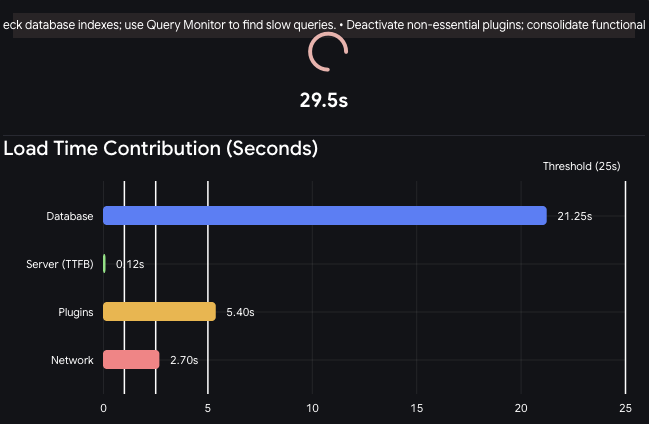
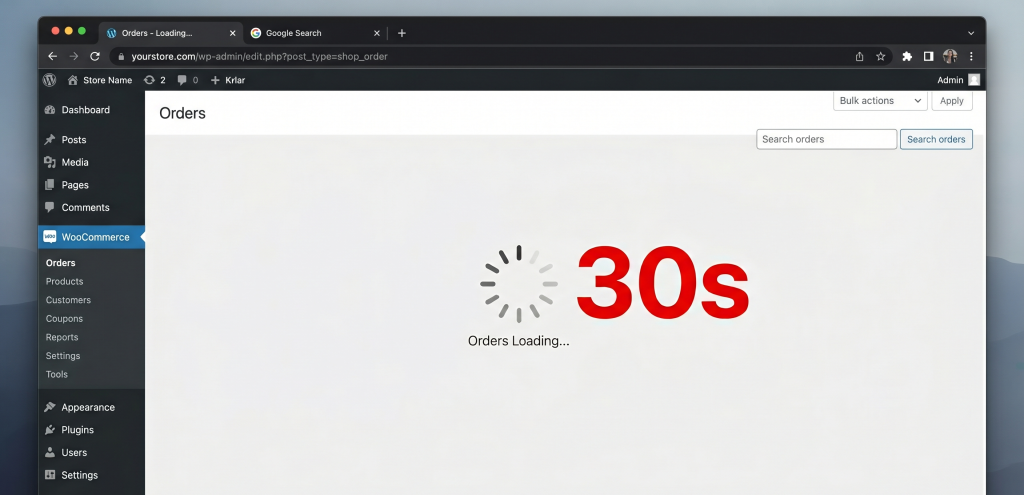
Your orders page takes 30 seconds to load. Filtering by date causes a timeout. Running a sales report feels like submitting a request and walking away to make coffee.
You already switched hosting providers. Nothing changed. Maybe you bumped PHP to 8.2. Still the same.
Here’s the thing: this isn’t a server problem. And the four fixes in this guide:what I call the WooCommerce Performance Stack; address it at the source.
What Actually Causes WooCommerce Admin to Slow Down
When a customer places an order in WooCommerce, the data doesn’t go into a dedicated orders table. By default, it gets stored in wp_posts (as a custom post type called shop_order) and wp_postmeta (as rows of metadata).
A single WooCommerce order can generate 40 to 60 rows in wp_postmeta, billing address, shipping address, payment method, transaction ID, order currency, customer IP, cart hash, and on and on. Multiply that by 5,000 orders and you’re looking at 200,000 to 300,000 rows in wp_postmeta tied just to orders.
Every time you load the WooCommerce admin orders screen, WordPress runs queries against these tables. Filtering, sorting, counting. The tables were designed for blog posts and pages, not for high-volume transactional data.
Upgrading your server gives you more compute power. But the queries are still slow because the schema is wrong for the workload. A faster server just runs bad queries faster.
Before You Fix Anything: Find the Actual Bottleneck
Before applying fixes blindly, spend five minutes confirming where the slowdown actually lives. The WooCommerce Performance Stack is most effective when you know which layer is the problem.
Method 1: Query Monitor Plugin
Install the free Query Monitor plugin. Load the WooCommerce admin orders page. In the Query Monitor toolbar, click Queries.
Look for queries with execution times over 100ms. The query text will tell you exactly which tables and conditions are the problem. This is your diagnostic map. Queries examining hundreds of thousands of rows against wp_postmeta are the signature of the legacy schema problem.
Method 2: MySQL Slow Query Log
On your server, enable the slow query log:
SET GLOBAL slow_query_log = 'ON';
SET GLOBAL long_query_time = 1;
SET GLOBAL slow_query_log_file = '/var/log/mysql/slow-queries.log';
Reproduce the slow admin behavior, then check the log file. You’ll see the full query, execution time, and rows examined.
The WooCommerce Performance Stack: Four Fixes
Fix #1: Migrate to HPOS (High-Performance Order Storage)
If your store predates WooCommerce 8.2, there’s a good chance you’re still running on the legacy storage system, and the HPOS migration is probably the single highest-leverage thing you can do today. It moves your orders out of wp_posts and wp_postmeta into dedicated custom tables built specifically for order data.
| Legacy (wp_posts) | HPOS (Custom Tables) | |
|---|---|---|
| Orders stored in | wp_posts + wp_postmeta | wc_orders + wc_orders_meta |
| Query efficiency | Poor at scale | Optimized with dedicated indexes |
| Admin load time | Degrades past 5k orders | Consistent at 50k+ orders |
| Plugin compatibility | Universal | Requires HPOS-compatible plugins |
How to Migrate
- Go to WooCommerce → Settings → Advanced → Features
- Under “Order data storage”, you’ll see the HPOS option
- Before switching, enable Compatibility Mode. This syncs both tables simultaneously during the transition
- Run the migration from the same screen; WooCommerce will process your existing orders in batches
- Once migration completes, disable Compatibility Mode
Back up your database before starting. Use WP Migrate or run a manual
mysqldump. No exceptions.
Plugin Compatibility Check
Not all WooCommerce extensions support HPOS. Common culprits include older PDF invoice plugins, custom order status plugins, and some shipping label generators.
Before migrating, go to WooCommerce → Status → Tools and use the compatibility check. Any plugin flagged as incompatible needs to be updated or replaced before you switch.
What to Expect
Use the Query Monitor plugin to benchmark your orders page load before and after. On a store with 10,000 orders, admin load times typically drop from 15–30 seconds to under 2 seconds after HPOS migration. It’s the most impactful single change in this stack.
Fix #2: Database Index Optimization
Even with HPOS or if you’re not ready to migrate yet, database indexes can dramatically speed up the slowest queries.
An index tells MySQL to pre-sort a column so it can find rows without scanning the entire table. Without indexes on the right columns, every query is a full table scan.
Always take a full database backup before running any SQL commands.
Indexes for the Legacy Schema
-- Index on wp_postmeta for order meta lookups
ALTER TABLE wp_postmeta ADD INDEX order_meta_key (meta_key, meta_value(20));

-- Index on wp_posts for order type + date queries
ALTER TABLE wp_posts ADD INDEX order_type_date (post_type, post_date);
Indexes for HPOS Tables
WooCommerce creates its own indexes on HPOS tables, but on large stores you may benefit from additional ones:
-- Composite index for status + date filtering
ALTER TABLE wc_orders ADD INDEX status_date_created (status, date_created_gmt);

-- Index for customer email lookups
ALTER TABLE wc_orders ADD INDEX billing_email (billing_email);
Run these via phpMyAdmin, Adminer, or your hosting control panel’s database tool. Adding an index is non-destructive, it doesn’t change your data.
Fix #3: WP Object Cache (Redis or Memcached)
Object caching stores the results of expensive database queries in memory. The next time the same query runs, WordPress returns the cached result instead of hitting the database again.
By default, WordPress uses a “non-persistent” cache that only lasts for a single page load. For WooCommerce admin, this means the same slow queries fire on every single load.
| Redis | Memcached | |
|---|---|---|
| Persistence | Yes (survives restarts) | No |
| Data structures | Rich (lists, sets, etc.) | Simple key-value |
| WooCommerce support | Excellent | Good |
Use Redis. I’ve never had a reason to pick Memcached for a WooCommerce setup. Redis persistent cache alone has cut order page load times noticeably on every VPS store I’ve worked on, and it compounds with HPOS because the queries being cached are already faster.
Most managed WordPress hosts (Kinsta, WP Engine, Cloudways, RunCloud) offer Redis as a one-click option. On a VPS, install Redis and add the Redis Object Cache plugin by Till Köster, then configure wp-config.php:
define('WP_REDIS_HOST', '127.0.0.1');
define('WP_REDIS_PORT', 6379);
define('WP_REDIS_TIMEOUT', 1);
define('WP_REDIS_READ_TIMEOUT', 1);
define('WP_REDIS_DATABASE', 0);
Go to Settings → Redis and confirm the connection shows “Connected.”
One thing to watch: make sure cart and session data are excluded from caching if you’re running a full-page cache layer on top. Mixing them incorrectly causes checkout issues.
Note: if you’re evaluating lightweight hosting setups where caching architecture matters, I’ve covered WordPress on Vercel and its tradeoffs elsewhere.
Fix #4: Archive Old Orders
The simplest fix that most store owners overlook: keep fewer active orders in the query pool.
Orders older than 6–12 months are rarely accessed in day-to-day operations. But by default, every query includes all of them, going back to day one.
Since WooCommerce 7.9, there’s a native archiving option:
- Go to WooCommerce → Settings → Advanced → Order archiving
- Set the threshold (e.g., archive orders older than 180 days)
- Archived orders are still accessible and searchable. They’re just excluded from the active query pool by default
This can cut your effective query dataset by 60–80% on stores running for more than a year. If you’re on an older WooCommerce version, the WooCommerce Order Archiver plugin provides the same functionality.
What Doesn’t Fix WooCommerce Slow Admin (And Why People Try It Anyway)
Switching hosting providers. The issue is query structure, not compute power. A faster server runs bad queries faster. Still slower than a properly optimized store on average hardware.
Adding a CDN. CDNs accelerate static assets and frontend delivery. The WooCommerce admin panel is dynamic and authenticated. It bypasses CDN caching entirely.
Updating PHP to 8.x. PHP version matters for code execution speed, but the bottleneck is MySQL query time, not PHP processing time. Marginal improvement, not a fix.
Installing a caching plugin. Full-page caching plugins (WP Rocket, LiteSpeed Cache) explicitly exclude admin pages and authenticated sessions. They do nothing for admin performance.
Increasing PHP memory limit. Memory limits affect page crashes, not query speed. An order table with 300,000 rows in wp_postmeta doesn’t care how much RAM PHP has.
A related note: if you’re troubleshooting other WooCommerce payment-side issues alongside admin performance, the Stripe Live Mode not working post covers a different but commonly co-occurring set of problems.
Which Fix to Apply First
| Your Situation | Start Here |
|---|---|
| WooCommerce 8.2+ | Enable HPOS if not already on |
| WooCommerce 7.x | Enable HPOS + Compatibility Mode |
| Store older than 1 year | Archive old orders first |
| Any configuration | Add database indexes |
| VPS or cloud hosting | Set up Redis object cache |
The most impactful single change is the HPOS migration. If your store is on a current WooCommerce version and not yet using HPOS, that alone will likely cut your admin load times by 70–90%.
Frequently Asked Questions
Does upgrading to WooCommerce 8.x automatically enable HPOS? No. WooCommerce 8.2 made HPOS the default for new installations, but existing stores are not automatically migrated. You have to opt in and run the migration manually.
Will the HPOS migration delete my existing orders? No. WooCommerce migrates your existing orders into the new tables. With Compatibility Mode enabled during the transition, both old and new tables stay in sync until you’re confident everything works.
How do I know if my plugins are HPOS-compatible? Go to WooCommerce → Status → Tools and run the built-in compatibility check. It will flag any installed plugins that haven’t been updated for HPOS.
What’s the fastest single fix for WooCommerce admin slowness? HPOS migration, assuming your WooCommerce version supports it and your plugins are compatible. For stores not ready for HPOS, adding database indexes on wp_postmeta gives the next best immediate improvement.
Can I use Redis object cache on shared hosting? Usually not. Most shared hosting environments don’t give you access to Redis. You’d need managed WordPress hosting (Kinsta, WP Engine, Cloudways) or a VPS to set it up properly.
Can slow WooCommerce admin affect my email deliverability? Not directly. But if you recently migrated hosting to solve a performance problem and started seeing email issues afterward, those are separate problems worth addressing at the same time. I’ve written about why emails go to spam after a domain migration if that’s relevant to your situation.
One More Thing
Everything above requires direct database access. And a wrong query, a missed backup, or an incompatible plugin can take your store offline during the process.
If you’d rather have it done safely: I diagnose the specific bottleneck, back up the database, run the HPOS migration, configure Redis, and test the result, without downtime. Get in touch and I’ll tell you what your setup actually needs.
Published on blog.yunuserturk.com: Yunus Erturk, independent WordPress and WooCommerce developer with 15 years of experience working on performance, LMS, and e-commerce builds.